 GetAPI
Configure Codex in CCSwitch for GetAPI.ONE
Add GetAPI.ONE as an OpenAI-compatible provider for a compatible Codex target in CCSwitch, then verify the connection.
Compatibility boundary
This workflow applies to compatible Codex targets exposed by the third-party CCSwitch application. It does not apply to the official ChatGPT consumer app, whose documented sign-in flow does not provide a field for an arbitrary third-party API provider.
Prerequisites
- A compatible Codex client or integration target already identified in your current CCSwitch release.
- CCSwitch obtained from its project release page and installed according to that project’s current instructions.
- A private, scoped GetAPI.ONE key and a model that explicitly declares the Responses endpoint.
- The ONE base URL https://www.getapi.one/v1. Do not mix it with another service’s key or URL.
1. Add the custom provider
- Open CCSwitch and select its Codex provider area.
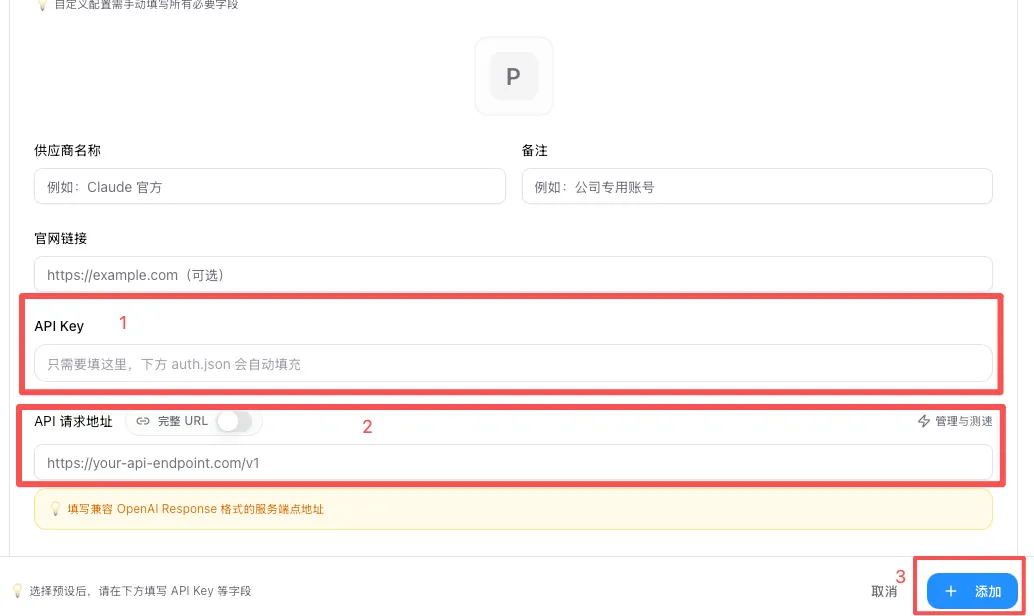
- Select the add control, then choose Custom configuration. Scroll if the option is below the initial view.
- Name the provider GetAPI One and optionally enter https://www.getapi.one as its website.
- Paste the GetAPI.ONE key into the API Key field and https://www.getapi.one/v1 into the API request address field.
- Replace YOUR_RESPONSES_MODEL with an exact catalog model visible to the key group and explicitly marked for the Responses endpoint, then save.
| Field | ONE value |
|---|---|
| Provider name | GetAPI One |
| Website (if requested) | https://www.getapi.one |
| API Key | Your private GetAPI.ONE key |
| API request address | https://www.getapi.one/v1 |
| Default model | YOUR_RESPONSES_MODEL (replace it) |
2. Enable, restart, and confirm the target
- Return to the provider list and enable GetAPI One.
- Fully quit and reopen the compatible target so it reloads provider configuration.
- Confirm the selected provider and model are GetAPI One and the exact catalog model you entered before sending anything.
3. Verify the connection
- Only after reviewing current pricing, send one minimal message you accept may be billed.
- Confirm the target receives a valid response.
- Confirm that a corresponding request or usage record appears in the GetAPI.ONE console.
Common failure branches
| Symptom | Check |
|---|---|
| 401 / Unauthorized | Re-copy the ONE key, confirm it is enabled, and pair it only with the ONE address. |
| 404 / Not Found | Keep /v1 in the CCSwitch request address and check whether the target appended an incompatible path. |
| Model not found | Use the exact model name visible to the key group and marked for the required endpoint. |
| No change after enabling | Confirm the right CCSwitch target/provider is enabled, fully restart the target, and inspect whether the installed version supports this workflow. |
| Timeout or no response | Check balance, key quota/expiry, rate limit, network, gateway status, and upstream error details in that order. |